

⚡Data Cloud Deep Dive: Three Ways to Explore Data 360
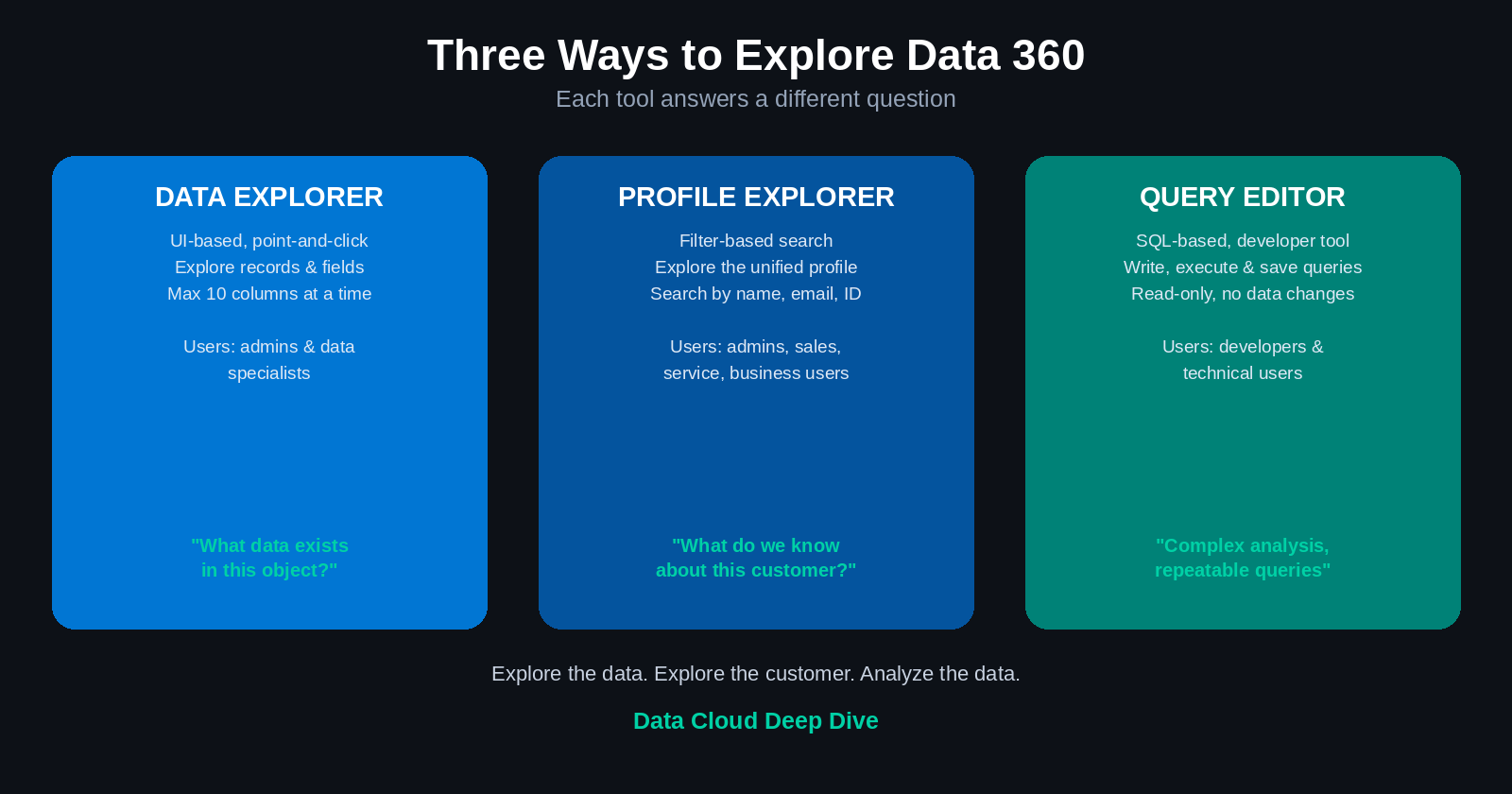
Table of Contents
- The three tools at a glance
- Data Explorer
- Profile Explorer
- Data Explorer vs. Profile Explorer
- Query Editor
- SQL vs. SOQL — an important distinction
- Data Explorer vs. Query Editor
- How to choose the right tool
- A practical exploration workflow
- Common mistakes to avoid
- Key terms
- Final takeaway
A week into this series, and we've covered the concepts, the data model boundaries, provisioning, and sandboxes. Today is a more hands-on lesson: once Data 360 is actually running, how do you look at what's in it? There are three distinct tools, and each one exists to answer a genuinely different question.
1. The three tools at a glance
| Tool | Primary purpose | Typical users | Query language |
|---|---|---|---|
| Data Explorer | Explore records and fields in Data 360 objects | Administrators and data-cloud specialists | UI-based; may support copied SOQL |
| Profile Explorer | Explore a unified customer profile | Administrators, service, sales, and business users | Filter-based search |
| Query Editor | Write, execute, and save analytical queries | Developers and technical users | SQL |
2. Data Explorer
Data Explorer is an administrator-friendly tool for viewing and exploring data within Data 360. It lets users inspect information from Data Lake Objects, Data Model Objects, Calculated Insights, and Data Graphs.
Capabilities: select a Data 360 object, view records, select fields or columns, apply filters, sort records, review calculated insight results, generate charts where supported, and explore data without writing a query.
Column limitation: Data Explorer allows a maximum of 10 columns to be selected at one time. Columns are arranged alphabetically by default, and users pick the specific fields they want to inspect. This cap makes the tool useful for focused exploration rather than broad data analysis — it's a deliberate constraint, not a bug.
Filtering and sorting: filter bookings by a particular booking ID, view records for a specific customer, filter by status, or search for records from a particular data source. Sort ascending or descending.
Query assistance: in some contexts, users can copy a generated SOQL query and continue working with it in the Developer Console — useful when UI filters aren't sufficient, conditions get complex, additional fields need querying, or a developer needs to refine or troubleshoot the query. Availability varies by object, release, and interface version.
Charts: when exploring calculated insights, Data Explorer may offer charting — visualize results, identify trends, compare values, and review insight outputs more intuitively.
Best use cases: quick record inspection, data-quality checks, validating ingestion, confirming field mappings, reviewing calculated insight outputs, applying simple filters, performing administrator-led exploration.
Example: an administrator selects an e-commerce profile Data Lake Object, chooses up to 10 fields, applies a filter for a particular customer or booking, sorts the results, reviews the records, and uses the output to validate whether the data was ingested correctly.
3. Profile Explorer
Profile Explorer is used to explore the unified customer view created through identity resolution. Where Data Explorer lets you examine records inside Data 360 objects, Profile Explorer focuses specifically on the unified profile — a consolidated view rather than isolated source records.
What it displays: unified individual records, customer identity information, attributes from multiple source systems, customer interactions, cross-system profile information, related customer activity.
Search attributes: users search for a unified profile using first name, last name, full name, email address, phone number, unified profile ID, or other supported identifiers.
Typical process: open Profile Explorer, select the appropriate Data Space, select the unified individual or profile object, add search criteria, enter values like name, email, phone, or ID, and review the resulting unified profile.
Best use cases: reviewing a customer's unified profile, validating identity resolution, checking whether records were combined correctly, investigating conflicting customer attributes, understanding a customer's cross-system interactions, supporting sales or service scenarios, demonstrating the value of a customer 360 view.
Example: a user searches for a customer by email address. Profile Explorer returns the unified profile and displays information collected from Sales Cloud, Service Cloud, Commerce Cloud, Marketing systems, and other connected data sources.
4. Data Explorer vs. Profile Explorer
| Consideration | Data Explorer | Profile Explorer |
|---|---|---|
| Primary focus | Data records and objects | Unified customer profile |
| Level of view | Individual object or dataset | Consolidated customer view |
| Main purpose | Explore and validate data | Understand a specific customer |
| Typical users | Admins and data specialists | Admins and business users |
| Search method | Fields, filters, and sorting | Customer attributes and profile filters |
| Identity resolution required | Not necessarily | Yes, for unified profiles |
| Best question answered | "What data exists in this object?" | "What do we know about this customer?" |
Memory aid: Data Explorer explores the data. Profile Explorer explores the person.
5. Query Editor
Query Editor is a developer-oriented tool for writing and executing SQL queries against Data 360 data. It's the tool for real analytical depth — beyond what a point-and-click interface can express.
Capabilities: create workspaces, write SQL queries, execute queries, view results, save queries, organize multiple queries, open queries in separate tabs, query different Data 360 objects, review results without modifying the underlying data.
Queryable objects: Data Lake Objects, Data Model Objects, Calculated Insights, Data Graphs.
Workspace functionality: a user can create a workspace to organize related queries, save queries for future use, open multiple query tabs, revisit previous analysis, and separate work by project or subject area.
Read-only limitation: Query Editor supports read operations only. Users cannot insert, update, or delete records, or directly modify source data through it. This makes Query Editor appropriate for exploration, analysis, and validation — not data maintenance or transactional updates.
Example workflow: open Query Editor, create a workspace, select a Data 360 object (like a booking object), add fields such as status and data source, write a SQL query, run it, review the returned records, and save the query for future use. Unlike Data Explorer, Query Editor has no 10-column limit and is built for more detailed, flexible analysis.
6. SQL vs. SOQL — an important distinction
In Data 360 Query Editor: you write SQL queries. You do not use SOQL as the primary query language. SQL is used to query supported Data 360 objects and data structures — this is different from the query language commonly used for Salesforce CRM objects. It's a small detail, but one that trips people up if they're coming from a pure Salesforce-admin background expecting SOQL everywhere.
7. Data Explorer vs. Query Editor
| Capability | Data Explorer | Query Editor |
|---|---|---|
| User experience | Point-and-click | Query-based |
| Target audience | Admins and data specialists | Developers and technical users |
| Query language | UI filters; possible SOQL copy option | SQL |
| Column limit | Maximum 10 selected columns | No comparable 10-column limit |
| Filters | UI-based | Written in SQL |
| Save queries | Limited or object-dependent | Yes, through workspaces |
| Multiple query tabs | Not the primary focus | Supported |
| Data modification | No | No |
| Best use | Quick exploration | Complex analysis and repeatable queries |
| Learning curve | Lower | Higher |
8. How to choose the right tool
Use Data Explorer when: you need a quick view of records, you're validating data ingestion, you want to apply simple filters, you're checking field mappings, you prefer a point-and-click interface, or you need to inspect a calculated insight or data graph.
Use Profile Explorer when: you need to review a unified customer, you're validating identity resolution, you want to understand a customer across systems, you need to search by name, email, phone, or profile ID, or you're demonstrating the customer 360 view.
Use Query Editor when: you need complex filtering, you need more than 10 columns, you want to write SQL directly, you need to save and reuse queries, you want multiple queries organized in workspaces, or you're performing technical data analysis.
9. A practical exploration workflow
A sensible sequence moves from basic validation to technical depth to business understanding:
- Use Data Explorer to confirm that data exists.
- Use filters and sorting to validate specific records.
- Use Query Editor for deeper analysis or complex conditions.
- Use Profile Explorer to validate the unified customer profile.
- Compare the results across source records and unified profiles.
- Investigate discrepancies in mappings, identity resolution, or data quality.
10. Common mistakes to avoid
- Confusing Data Explorer with Profile Explorer. Data Explorer shows data in Data 360 objects. Profile Explorer shows the unified customer view.
- Assuming Data 360 Query Editor uses SOQL. It uses SQL. SOQL may appear in Salesforce-CRM-oriented exploration contexts, but it isn't the query language for Query Editor.
- Treating Data Explorer as a full analytics tool. It's built for exploration and validation — Query Editor or a dedicated analytics platform is the right tool for real complex analysis.
- Expecting Query Editor to modify records. It's read-only. No insert, update, or delete.
- Ignoring Data Spaces. Selecting the correct Data Space is an important first step in Profile Explorer — the wrong one leads to incomplete or unexpected results.
- Treating unified profiles as source records. A unified profile is a consolidated view. It maintains relationships to source data but isn't the same thing as a single original source record.
11. Key terms
| Term | Definition |
|---|---|
| Data Explorer | UI-based tool for exploring Data 360 objects and records |
| Profile Explorer | Tool for viewing unified customer profiles |
| Query Editor | Developer tool for writing and executing SQL queries |
| Data Lake Object | Object representing ingested data from source systems |
| Data Model Object | Object aligned to the Data 360 data model |
| Calculated Insight | Derived metric or analytical result generated from Data 360 data |
| Data Graph | Related view of connected data across objects |
| Data Space | Logical boundary for organizing or separating Data 360 data |
| Unified profile | Consolidated view of a customer or entity across sources |
| SOQL | Salesforce Object Query Language |
| SQL | Structured Query Language used for relational and analytical querying |
| Read operation | An operation that retrieves data without changing it |
12. Final takeaway
Data 360 provides three complementary exploration tools: Data Explorer to quickly inspect data and Data 360 objects, Profile Explorer to review the unified customer profile, and Query Editor to write and execute read-only SQL queries for deeper technical analysis.
The simplest way to hold onto the distinction: explore the data with Data Explorer, explore the customer with Profile Explorer, and analyze the data with Query Editor.
Quick knowledge check
- What is the primary purpose of Data Explorer?
- What is the maximum number of columns Data Explorer can display at once?
- What types of objects can be explored using Data Explorer?
- What is the primary purpose of Profile Explorer?
- Which attributes can be used to search for a unified profile?
- Why must the correct Data Space be selected in Profile Explorer?
- Which query language is used in Query Editor?
- Can Query Editor insert, update, or delete records?
- What is the main difference between Data Explorer and Profile Explorer?
- When should you use Query Editor instead of Data Explorer?


